# Breadcrumb
Breadcrumbs are navigation links that display the hierarchy of a page on your website. They enhance the user experience by allowing visitors to understand their location and navigate back to previous pages easily.
**You can modify the breadcrumbs globally for your entire site or individually for specific pages.**
#### **Global Option**
{% hint style="success" %}
**Global Option (Apply to Entire Site)**
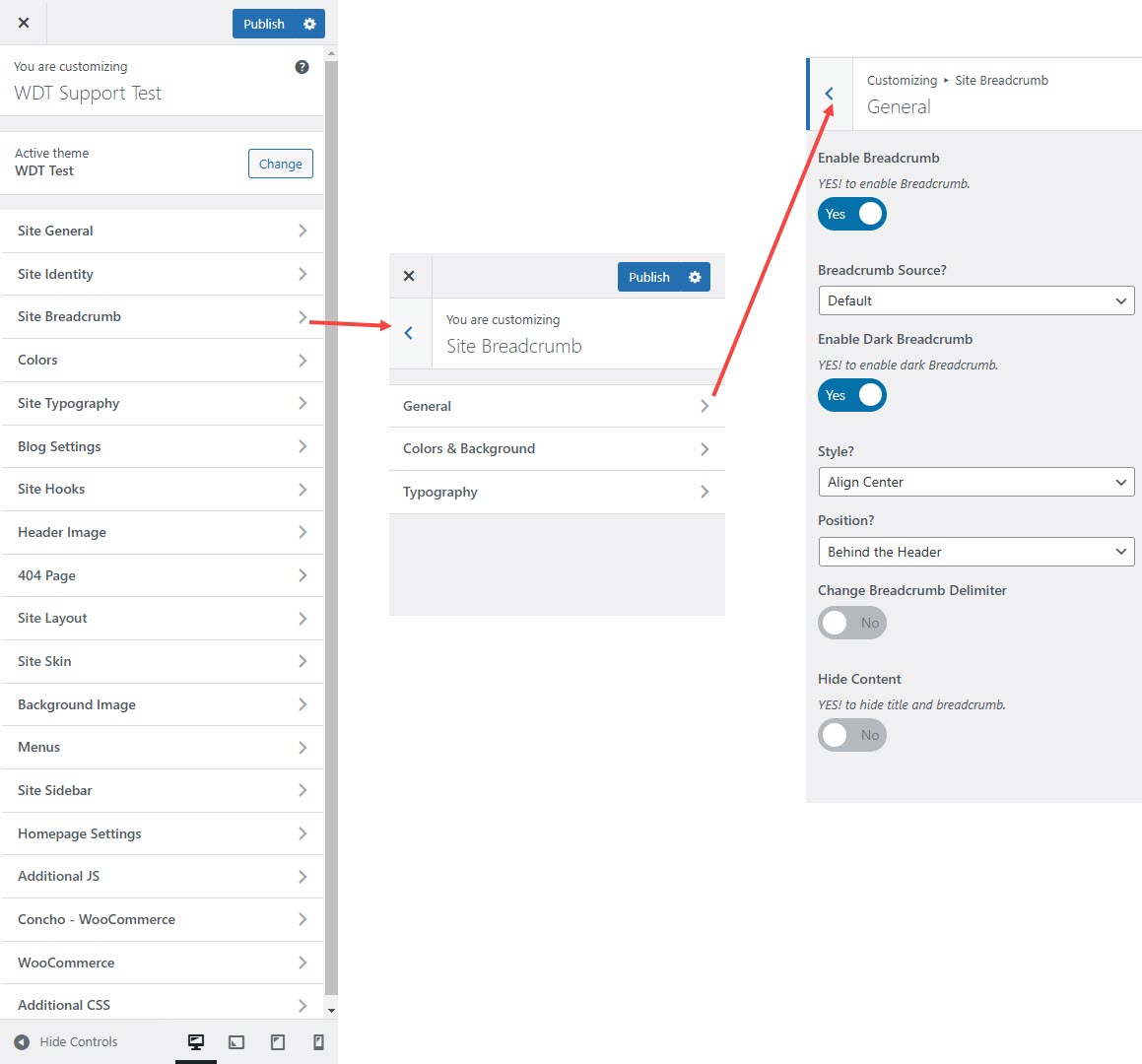
* Go to **Appearance** → **Customize** → **Site Breadcrumb**.
* Customize the breadcrumbs:
* Change the **breadcrumb image, style, or settings** globally.
* Click **Publish** to save changes.
{% endhint %}
#### **Breadcrumb Customization in WordPress**
To customize breadcrumbs on your site, follow these steps:
**Step 1: General Options**
* Go to **Appearance** → **Customize** → **Site Breadcrumb** → **General Options**.
* Configure the following settings:
* **Enable Breadcrumb** → **YES** (to display breadcrumbs).
* **Breadcrumb Source** → **Default**.
* **Enable Dark Breadcrumb** → **YES** (to use a dark style).
* **Style** → **Align Center**.
* **Position** → **Behind the Header**.
* **Change Breadcrumb Delimiter** → Adjust the separator.
* **Hide Content** → **YES** (to hide title and breadcrumb).
**Step 2: Colors & Background**
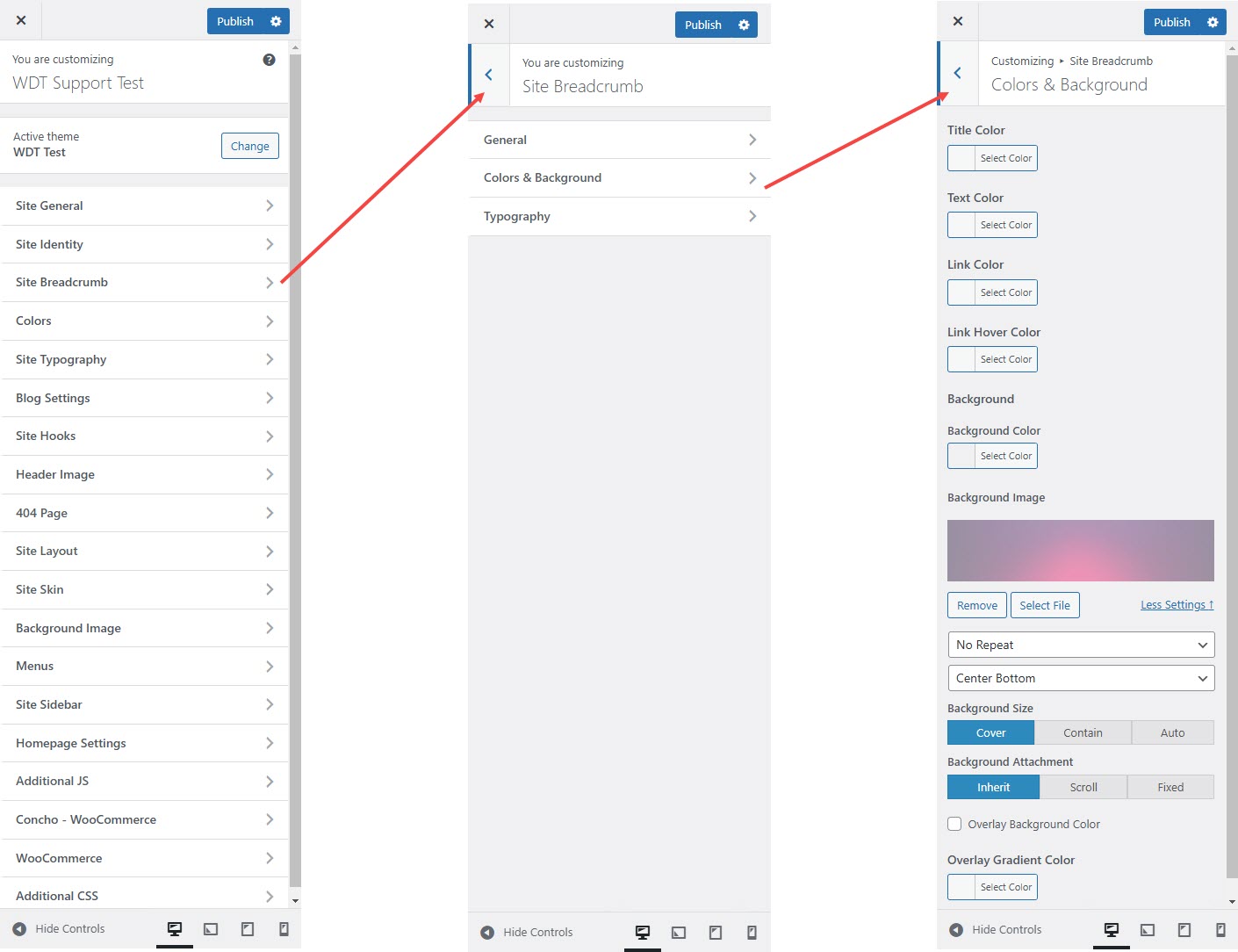
* Navigate to **Site Breadcrumb** → **Colors & Background**.
* Customize breadcrumb appearance:
* **Title Color, Text Color, Link Color, Link Hover Color** → Choose colors.
* **Background Color** → Set a background color.
* **Background Image** → Upload or remove an image.
* **Background Repeat →** Choose how the background image repeats (e.g., Repeat All, Repeat Horizontally, Repeat Vertically).
* **Background Position →** Set the alignment of the background image (e.g., Center Bottom, Top Left). **Background Size** → Choose **Cover, Contain, or Auto**.
* **Background Attachment** → Set to **Inherit, Scroll, or Fixed**.
* **Overlay Background & Gradient Color** → Select colors if needed.
**Step 3: Typography**
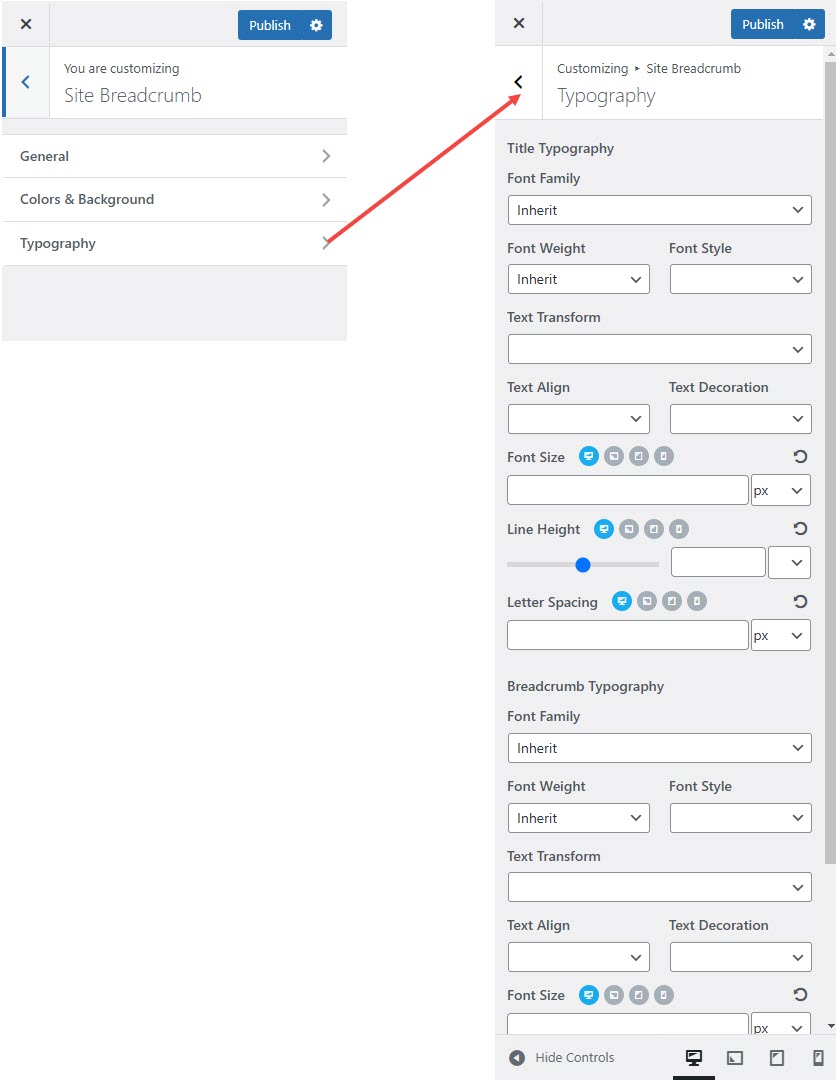
1. Go to **Site Breadcrumb** → **Typography**.
2. Adjust text settings for **Title & Breadcrumb Typography**:
* **Font Family** → Choose or **Inherit** from theme.
* **Font Weight, Font Style, Text Transform, Text Align, Text Decoration** → Customize as needed.
* **Font Size, Line Height, Letter Spacing** → Set appropriate values.
**Step 4: Save Changes**
* Click **Publish** to apply all customizations.
#### **Breadcrumb – Individual Page Settings**
To customize breadcrumbs for a specific page or post, follow these steps:
1. **Navigate to Pages or Posts**
* Go to **WordPress Dashboard** → **Pages** or **Posts**.
* Open the page or post where you want custom breadcrumbs.
2. **Modify Breadcrumb Settings**
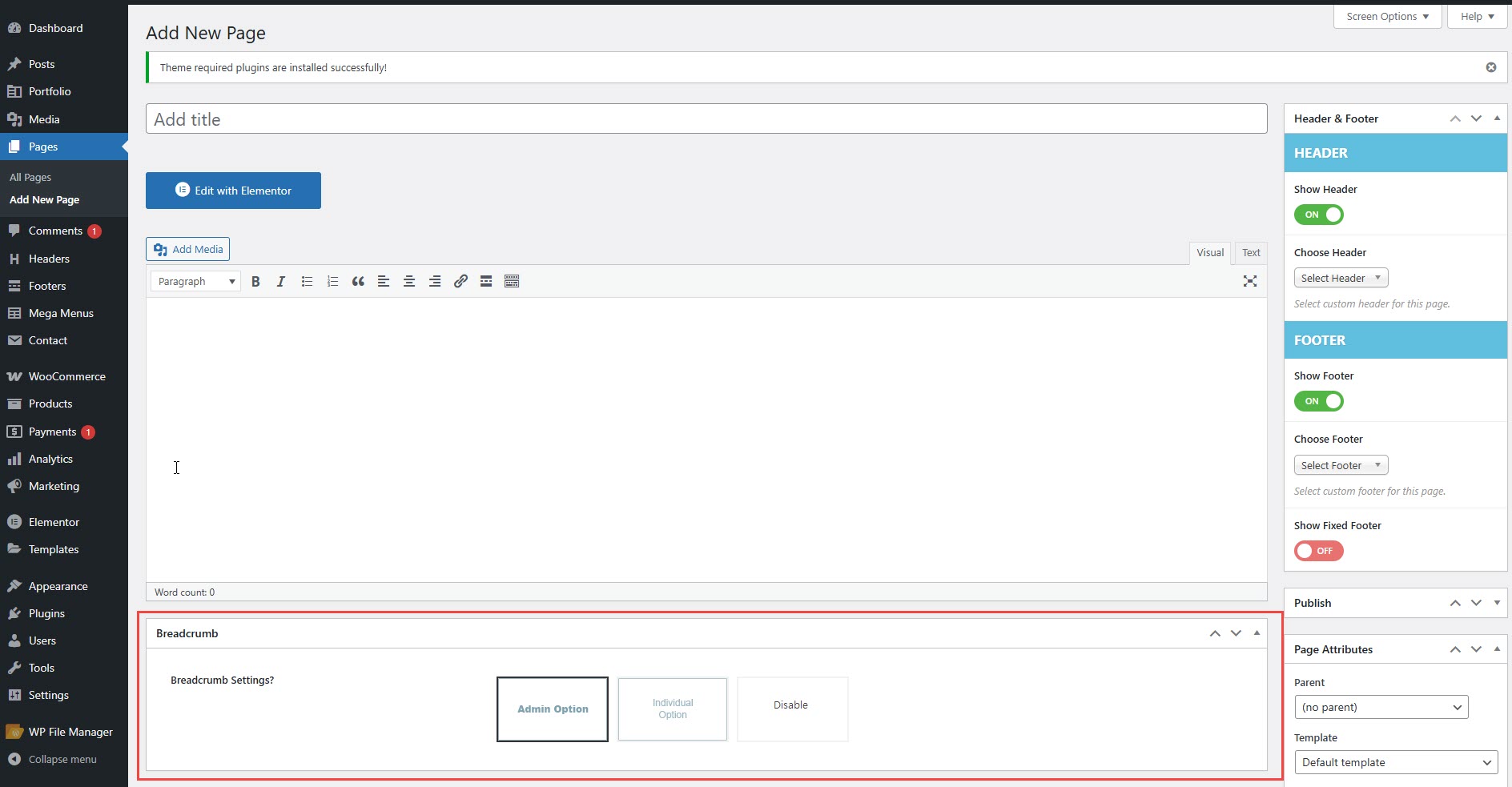
* Locate the **Breadcrumb Settings** section.
* Choose from the following options:
* **Admin Option** → Uses the global breadcrumb settings.
* **Individual Option** → Allows you to apply custom breadcrumb settings for a specific page or post, overriding the global breadcrumb settings. This lets you control layout, background, and visibility individually.
* **Disable** → Hides breadcrumbs on this page/post.
3. **Save Changes**
* Click **Update** to apply the changes.
{% embed url="" %}