# Mega Menu

#### **How to Create a Mega Menu in Your Header Using Elementor** <a href="#how-to-create-a-mega-menu-in-your-header-using-elementor" id="how-to-create-a-mega-menu-in-your-header-using-elementor"></a>

#### **Step 1: Navigate to Mega Menu Settings** <a href="#step-1-navigate-to-mega-menu-settings" id="step-1-navigate-to-mega-menu-settings"></a>

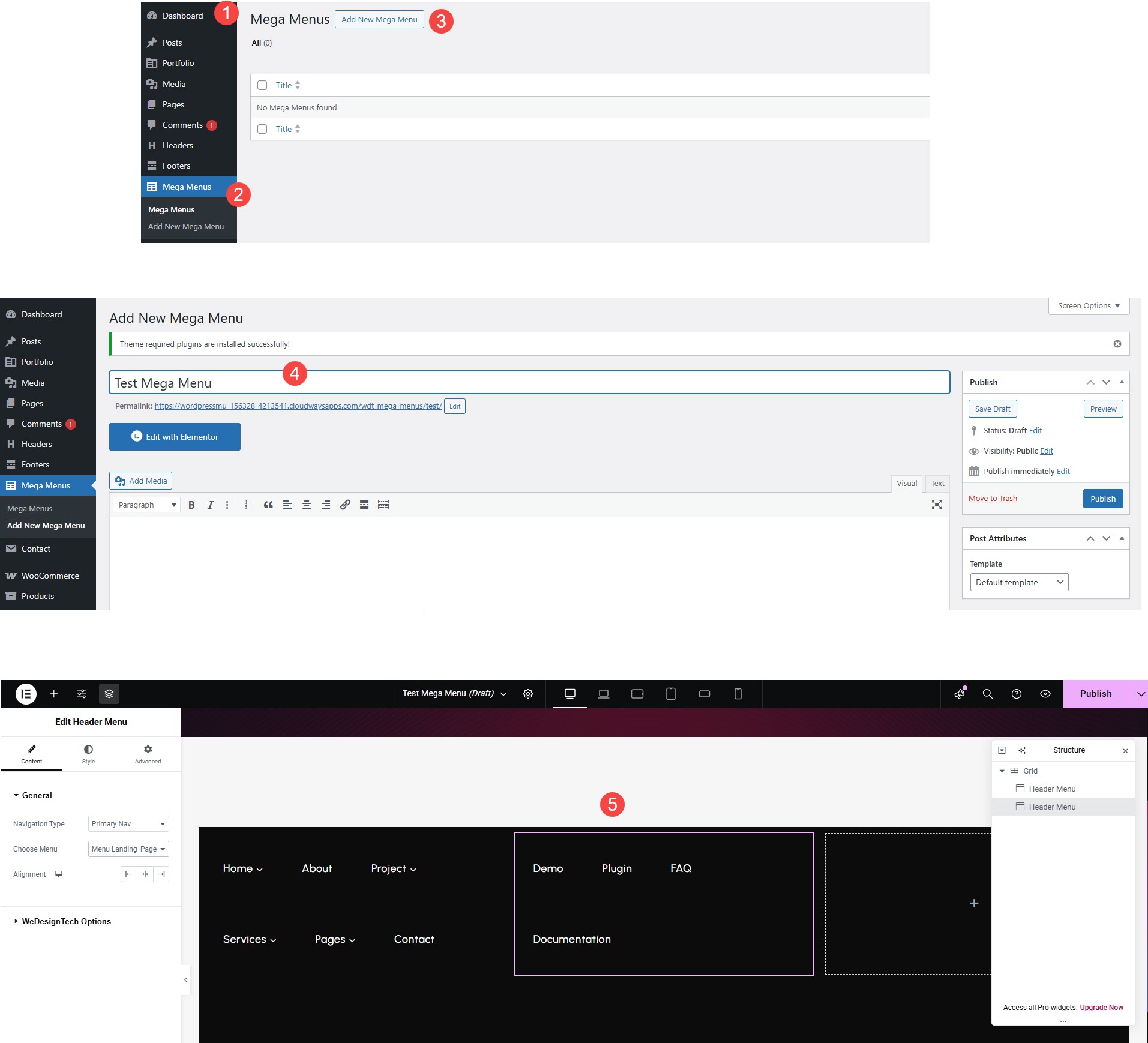
* Go to **WordPress Dashboard** → **Mega Menu** → **Add New Menu**.

#### **Step 2: Create a New Mega Menu** <a href="#step-2-create-a-new-mega-menu" id="step-2-create-a-new-mega-menu"></a>

* Enter a **Menu Name** and click **Create Menu**.

#### **Step 3: Add Menu Items** <a href="#step-3-add-menu-items" id="step-3-add-menu-items"></a>

* Select **Pages, Posts, Categories, or Custom Links** to add to the menu.

<figure><img src="https://content.gitbook.com/content/vO76m9boh6U15JnTSDPM/blobs/tB7SskQE1icriviVWfcX/mega.jpg" alt=""><figcaption></figcaption></figure>

#### **Step 4: Enable Mega Menu** <a href="#step-4-enable-mega-menu" id="step-4-enable-mega-menu"></a>

* Hover over a **Parent Menu Item** and click **Mega Menu Settings**.
* Enable **Mega Menu** and choose a **layout** (Full-Width, Columns, etc.).

#### **Step 5: Customize with Elementor** <a href="#step-5-customize-with-elementor" id="step-5-customize-with-elementor"></a>

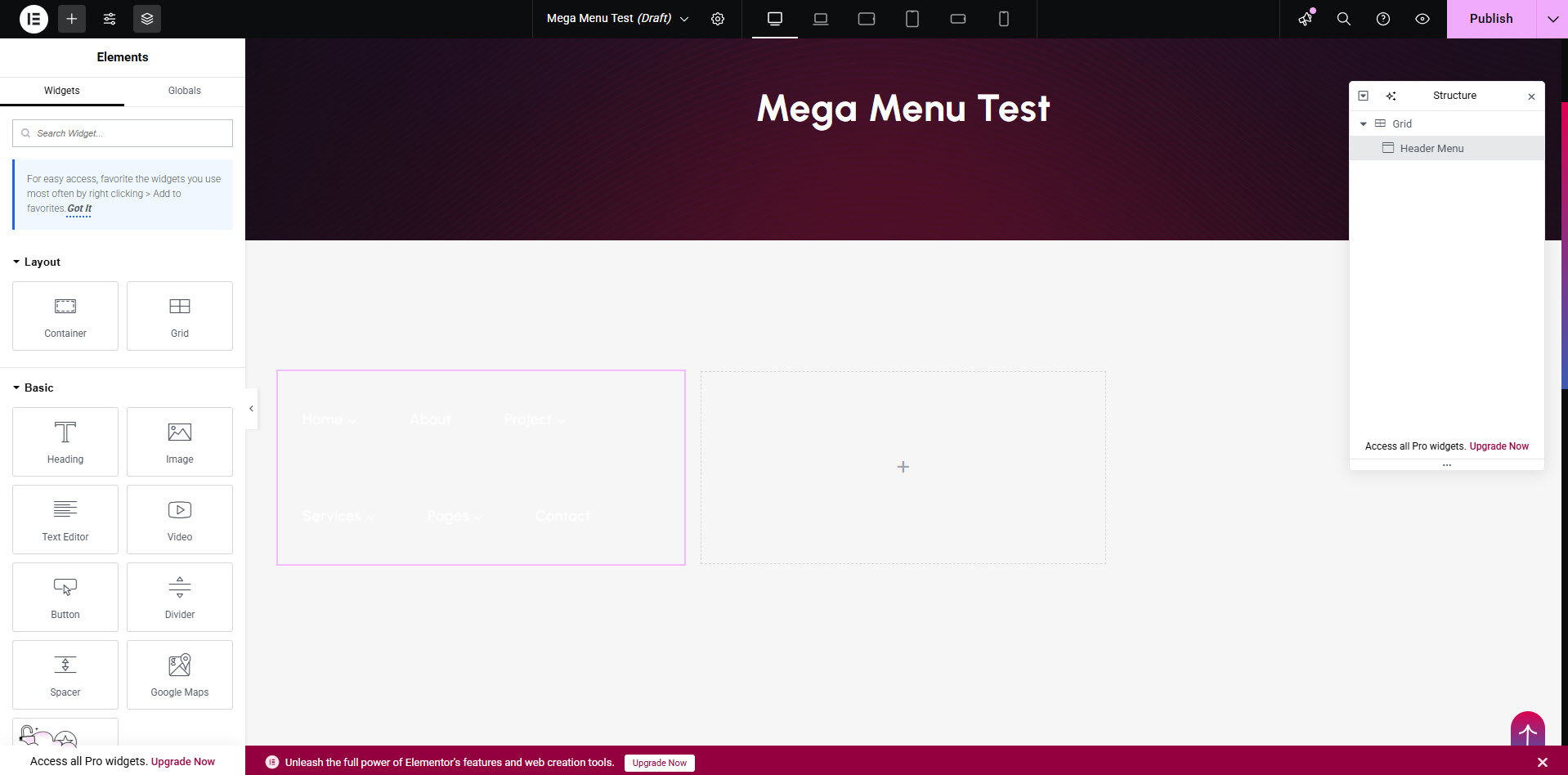
* Use **Elementor Widgets** to design the Mega Menu.
* Add **Images, Icons, Columns, and Widgets** as needed.

<figure><img src="https://content.gitbook.com/content/vO76m9boh6U15JnTSDPM/blobs/ij94gGxPhDsuXLrKeAvB/mega3.jpg" alt=""><figcaption></figcaption></figure>

#### **Step 6: Save & Assign the Menu** <a href="#step-6-save-and-assign-the-menu" id="step-6-save-and-assign-the-menu"></a>

* Click the **Save Menu** and assign it to your header under **Appearance** → **Menus**.

{% embed url="<https://youtu.be/G8pOrHnYaZU>" %}