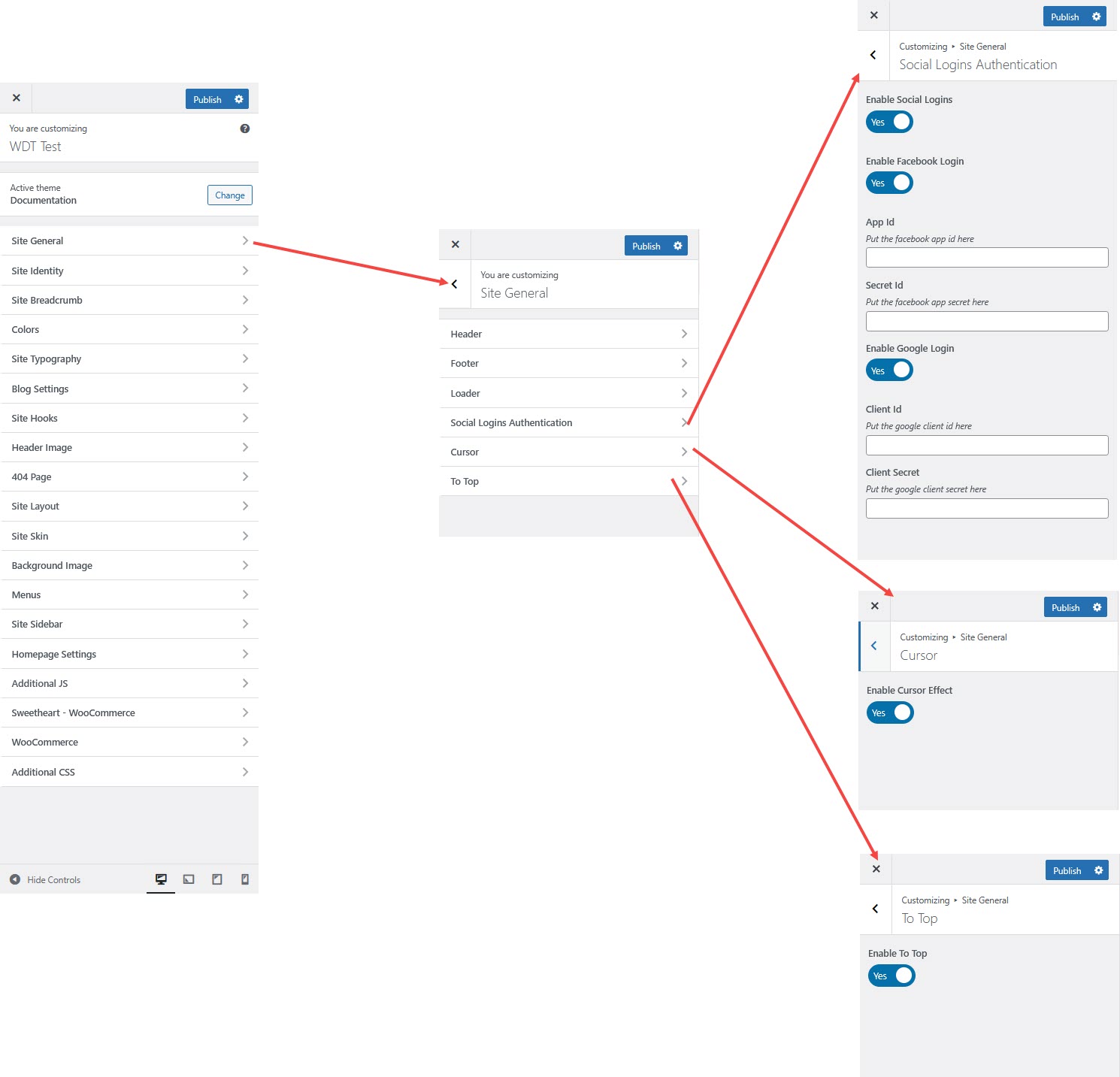
# Site General
The **Theme Customizer** is another user-friendly method for customizing your WordPress theme, suitable for both beginners and intermediate users.
{% hint style="success" %}
Here's a short form of the **Site General** settings process in WordPress:
**Step 1 : Login** to your WordPress admin dashboard.
**Step 2 :** Go to **Appearance** > **Customize**.
**Step 3 :** **Site General** settings
**Step 4 :** Adjust the settings as needed and click **Publish** to save changes.
{% endhint %}
### **Customizing Site General Settings**
In the **Theme Customizer**, you can modify various aspects of your site under **Site General** settings.
#### **Header Settings**
* You can set the header layout globally for your entire website.
* **Site Header :** Enable or disable the site header for your website.
* **Header Template :** Select a pre-designed header template from the available options.\
This template controls the layout and style of your site’s header.
#### **Footer Settings**
* You can set the footer layout globally for your entire website.
* **Site Footer :** Enable or disable the site footer on your website.
* **Footer Template :** Select a pre-designed footer template from the available options.\
This template controls the layout and style of your site’s footer.
#### **Loader**
* You can enable or disable the preloader animation that appears before the site loads, and also choose the loader style to your preference.
* **Enable Loader :** Turn this option on to activate a loading animation for your website.
* **Select Loader :** Choose a loader style from the available options.\
This controls the animation that appears while your website content is loading.
#### **Popup**
* **Enable Popup :** Turn this option on to activate the popup feature on your website.
* **Select Popup :** Choose the popup you want to display from the available list.
* **Popup Display Conditions :** Set where and when the popup should appear on your site.
* **Exclude Specific Pages :** Select the pages where you don’t want the popup to appear.
#### **Social Logins Authentication**
* Configure login options using **Google, Facebook, or other third-party providers**.
#### **Cursor**
* Customize the **mouse cursor style** and enable/disable the site.
#### **To Top**
* Enable a **Back to Top button** for easier navigation.
#### **Saving Your Changes**
* Once all settings are adjusted, click **Publish** to apply them.